


Q3 Digital Self Portrait: Creation
In this Quest, you will create an appropriate digital media self-portrait (selfie poster) using a photo editing program to express yourself and create a unique selfie. For examples of teens who have created these posters, visit the Selfie Project or view the two student-created ones below using iPiccy.
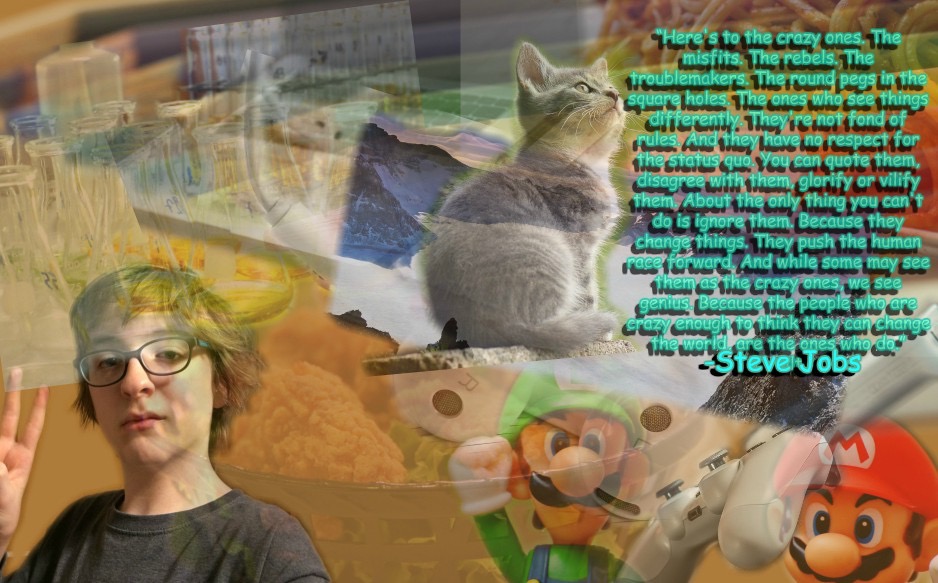
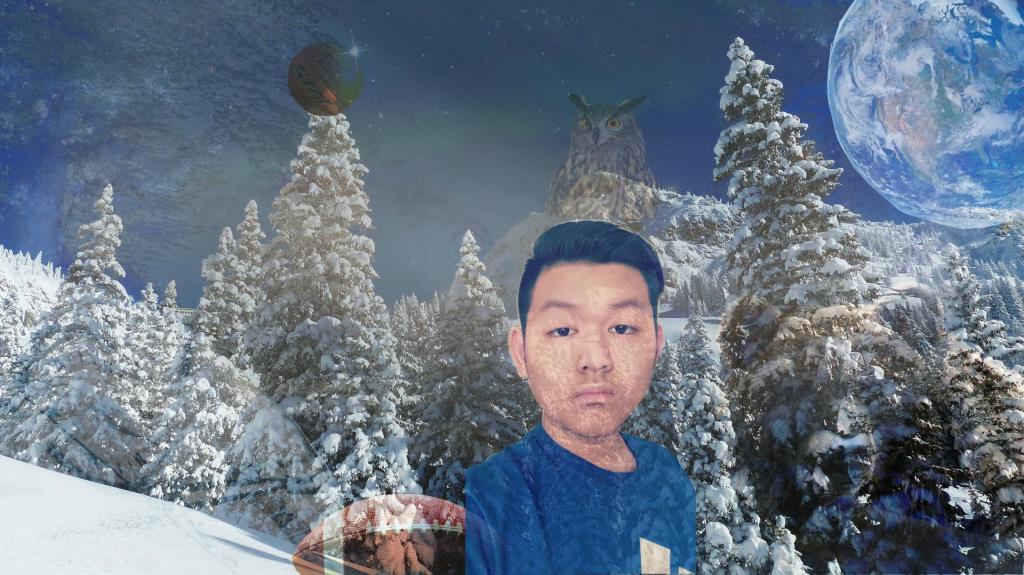
Selfie Project
Step 1. Begin by creating a folder space to save your work. You might name it "Name (yours) Selfie project." Check with your teacher about the location to save it (possibly in a personal folder, drive space, desktop, or shared workspace).
Step 2. Select or take a picture of yourself for this project and save it to your Selfie Project folder. Choose an image that makes you look good and has a quiet (plain) background.
Step 3. Decide if you want to remove the background. Try it out! Drag or upload your photo onto the remove.bg website (also a free feature of PIXLR).
When it is done processing, you can download a .png image file of yourself. This example shows the original photo and the result with the background removed. You can edit the result before downloading it.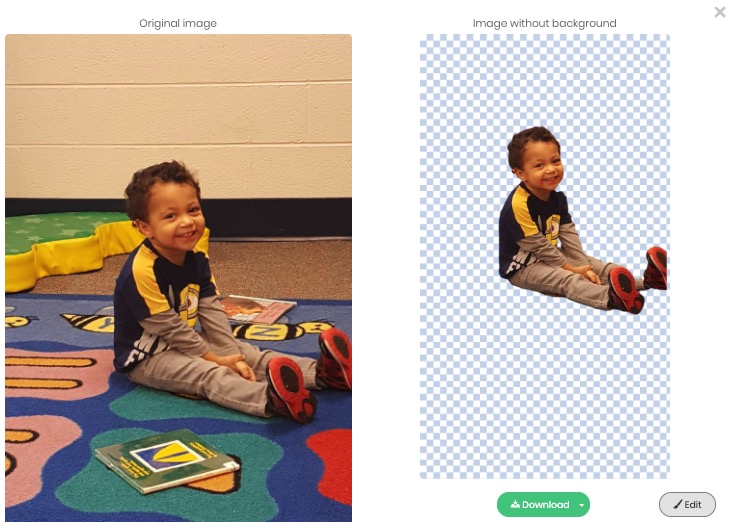
Step 4. Next, locate a few images representing you, your favorite things, hobbies, etc. You might use one of the sites mentioned in Quest 1 to help you locate copyright-free online images and background scenes. Save these into your Selfie Project folder.
Copyright-free sites: Lifeofpix, Photos For Class, Picography, and Pics4Learning
Edit these Favorite images: Remember, you can use a photo editor to crop or edit these images to prepare them to add to your self-portrait. Try experimenting with some editing features as you did in Quest 2. Apply and save your pictures into your Selfie Project folder.
- Image editing sites: iPiccy, Pixlr, or Canva Online Photo Editor
Step 5. When ready, upload your selfie photo to one of the editing sites. Then, add one or more images representing your favorites to your Selfie Image. Check to see if there is an option to create a collage (iPiccy and Pixl have one). Use the features of the photo editing program to overlay or add images and textures, words, frames, stamps, etc., that will enhance your digital self-portrait.
Step 6. Share your selfie work with a classmate to discuss editing features and suggestions.
Step 7. Save it when done and share the final Selfie image or collage with your teacher.

Competencies & Standards
MITECS Michigan Integrated Technology Competencies for Students, and
1. Empowered Learner
c. Students use technology to seek feedback that informs and improves their practice and to demonstrate their learning in a variety of ways.
d. Students understand fundamental concepts of how technology works, demonstrate the ability to choose and use current technologies effectively, and are adept at thoughtfully exploring emerging technologies.
2. Digital Citizen
a. Students manage their digital identity and understand the lasting impact of their online behaviors on themselves and others and make safe, legal and ethical decisions in the digital world.
b. Students demonstrate empathetic, inclusive interactions online and use technology to responsibly contribute to their communities.
c. Students safeguard their well-being by being intentional about what they do online and how much time they spend online.
d, Students take action to protect their digital privacy on devices and manage their personal data and security while online.
6. Creative Communicator
a. Students choose the appropriate platforms and digital tools for meeting the desired objectives of their creation or communication.
b. Students create original works or responsibly repurpose or remix digital resources into new creations.
c. Students use digital tools to visually communicate complex ideas to others.
d. Students publish or present content that customizes the message and medium for their intended audiences.
Websites and Documents
Websites
- Canva Online Photo Editor
- iPiccy
- Lifeofpix
- Photos for Class
- Pixlr
- Picography
- Pics4Learning
- Remove.bg
- The Selfie Project
21t4s Websites
21t4s Documents & Quizzes