



Q3 Screenshot: Partial Screen
Screenshot of a partial screen
Step 1. In a new tab on your browser, type the following in the search bar: "How do I take a screenshot of part of my screen with a _________?" Fill in the blank with the exact name of your device (e.g., Chromebook, Windows PC, Macintosh, iPad).
Step 2. Write down the steps if you need to and try it out. (An example is shown below using a MacBook Pro and Chrome browser).
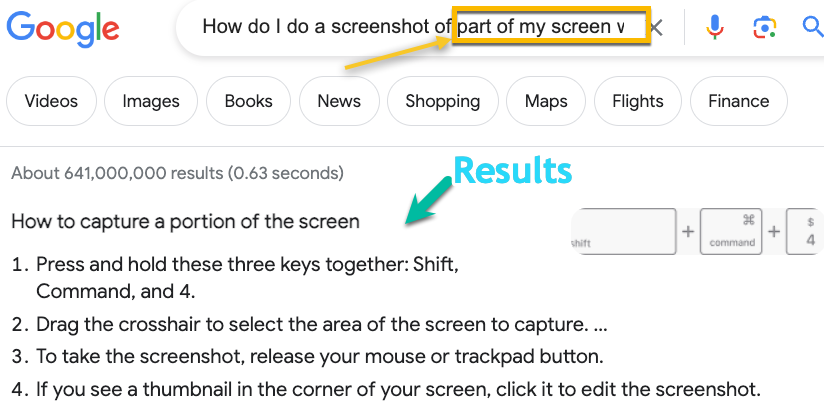
Discussion: Did others in your class see the same results? Are you using the same device? If so, did you both use the same steps? If not, compare the results you each have.
Step 3. Try it again for practice. Did you locate where the image was saved on your device?
Step 4. Open a word processing document (Google Docs or Microsoft Word) and use the shortcut to paste your screenshot into the document.
- Was the screenshot image still in memory?
Step 5. Brainstorm three to four ways this could be helpful together or as a class, based on your teacher's instructions.


Competencies & Standards
MITECS Michigan Integrated Technology Competencies for Students
1. Empowered Learner
d. Students understand fundamental concepts of how technology works, demonstrate the ability to choose and use current technologies effectively, and are adept at thoughtfully exploring emerging technologies.
Websites and Documents
No Websites or Documents on this Introduction Page