



Q3 Calendar & Tasks: Calendar
Master your Schedule
As a student, you may have to juggle school, extracurriculars, social life, and responsibilities every single day. Often, we try to keep track of all these commitments using nothing but our brains. But is that the best strategy?
You will learn about the digital workspace:
- A calendar tool that can be used to keep your brain from having to juggle all these items in just your memory.
- Mastering your digital calendar will not only help you stay on top of your schedule, but knowing how to schedule recurring events, hide information, and manage tasks will be crucial skills for building your final Digital Escape Room!
Discussion questions to think about while the video below plays:
- The tutorial mentions using "recurring events,” what is one activity you participate in or event that you would set as a recurring event?
- Think about a time you forgot an assignment or missed a deadline. How could setting up the automatic notifications shown in the video changed that outcome?
Select the correct video based on Team Google Calendar or Team Microsoft (Outlook) Calendar.
Team Google Calendar
Direct link to Team Google Calendar (2:15 min.)
Team Microsoft (Outlook) Calendar
Direct link to Team Microsoft (Outlook) Calendar (2:07 min.)
Setup and Organization of Calendar
Your digital calendar can do much more than remind you what day it is! In this training, you’ll learn how to schedule timed, all-day, and multiday events, as well as set events to repeat automatically. You’ll also explore notifications that help you remember what’s coming up and discover how to add and manage multiple calendars. By the end, you’ll be ready to take control of your schedule!
Step 1. Tips for successfully completing the training:
- Read the instructions on the pop-up page completely.
- There will be two slide bars on the right hand side - one for the calendar and one for the entire training screen. You may need to scroll up and down to complete each step.
- You may turn the "read" sound off or back on by selecting the sound icon at the top of the page.
- Be aware of the items highlighted with a blue borders.
- You may move the instruction box around by selecting the MOVE or + button and dragging it around. This will help you view the instructions while in the correct location on the calendar screen.
- If you do not follow the instructions completely, you will not be able to move on in the training.
Step 2. Now select the image for the calendar training that is appropriate for your school.
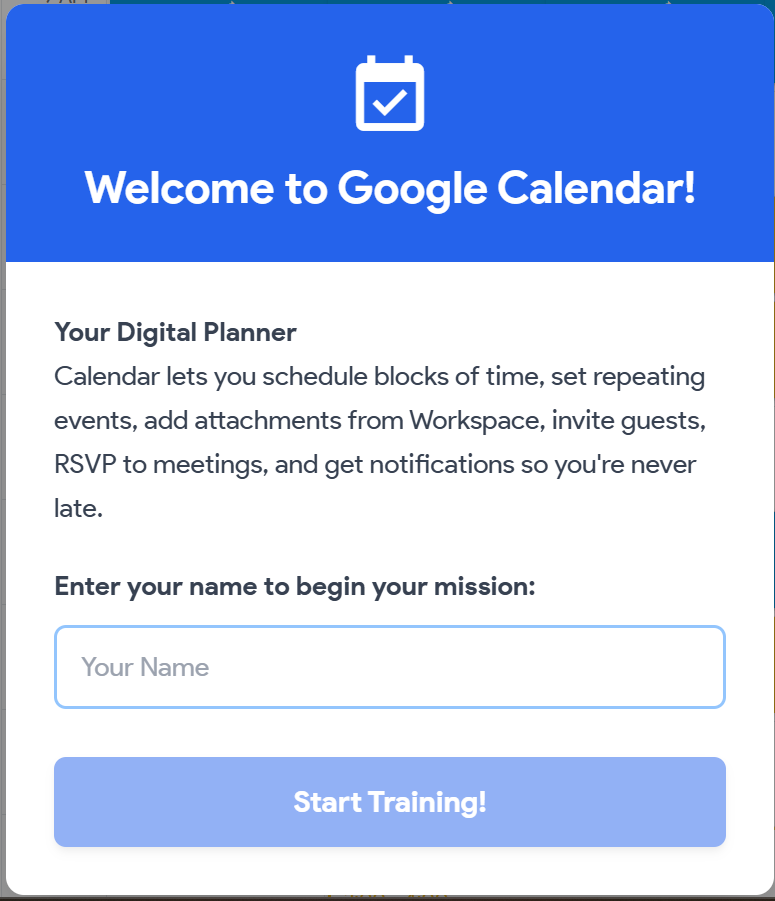
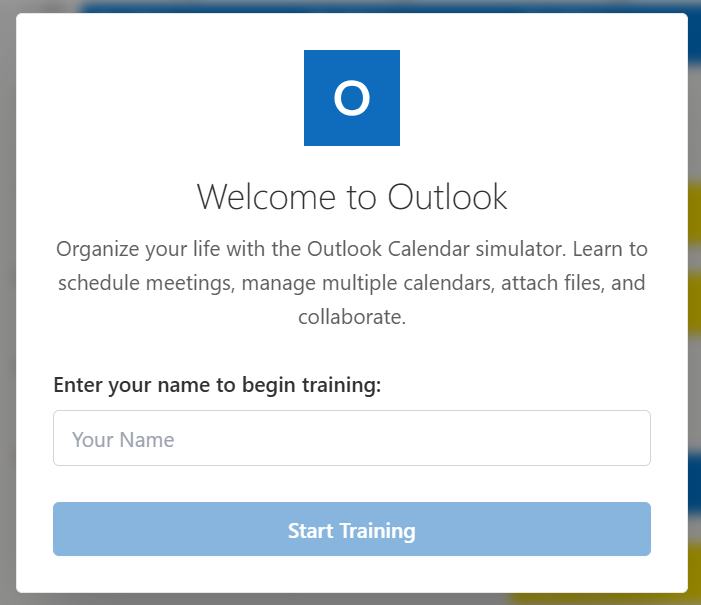
Direct link to Google Calendar Training | Direct link to Microsoft (Outlook) Calendar Training
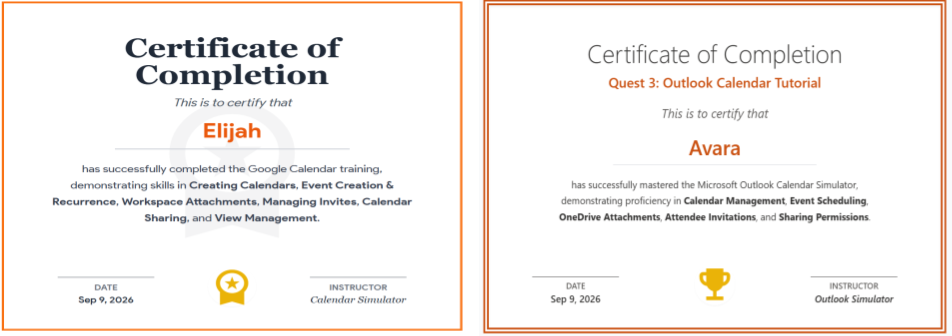
Step 3. Add your Certificate of Completion to your Thing 4 Quest 3 folder that you created in Quest 1.
- Select Download button.
- Make sure the name of the image is correct and change it if you have a different naming style.


Websites & Documents
Videos
- How to Use Google Calendar for Students (2:15 min.)
- How to Use Microsoft Calendar (2:07 min.)
21T4S Resources