



Q2 Document Skills: Setup
Starting Fresh: Why Word Processors Rule the Digital World
Think about your favorite video game, movie, YouTube video, or even a petition to change a school rule. Before any of those things ever came to life, they all started in the exact same place: a blank document.
Whether you use Google Docs or Microsoft Word, word processors are the ultimate blank canvases of the digital world. They aren't just tools for typing up standard school papers—they are where ideas get born, built, and shared.
Why Should You Care About Word Documents?
It’s the Universal Language: From 8th-grade science class to college, movie studios, and tech companies, word documents are one essential way people share their thoughts to the world.
It Saves You From Disaster: Ever typed half an assignment, closed your laptop, and then panicked because you couldn't find it? Learning how to start a document the right way—naming it immediately and storing it properly—is the difference between finishing early or re-doing your work at 10 PM.
Setting Up Your Canvas
- Starting a document isn't just about clicking "New." It's about laying a strong foundation. In this section, you'll learn how to launch a fresh document in your Drive/OneDrive, name it so it never gets lost in the void, and decide whether to start from scratch or hack your time using a pre-made template.
Keep your mind set on the final activity in this Thing.
- Knowing how to launch, name, and link new documents will be a key trick when building your Digital Escape Room!
Word Processing (Doc) Setup Training
Tips for a successful training:
- Use just your first name in the box that pops up.
- The training instructions will be in a box on the bottom right of your screen with a blue top ribbon. You may need to scroll down to be able to read the instructions.
- Follow each set of instructions carefully before selecting the “next” button.
- Some steps will have items on the page with boxes flashing to show you what to select.
- You may turn the "read" sound off or back on by selecting the sound icon at the top of the page.
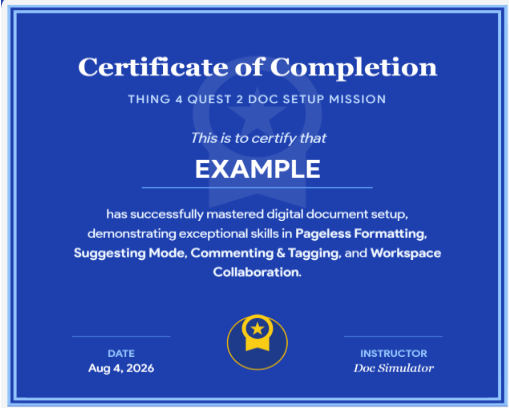
- Make sure you download the certificate at the end to put in your Quest 2 folder.
Step 1. Select the image below to start your training module.
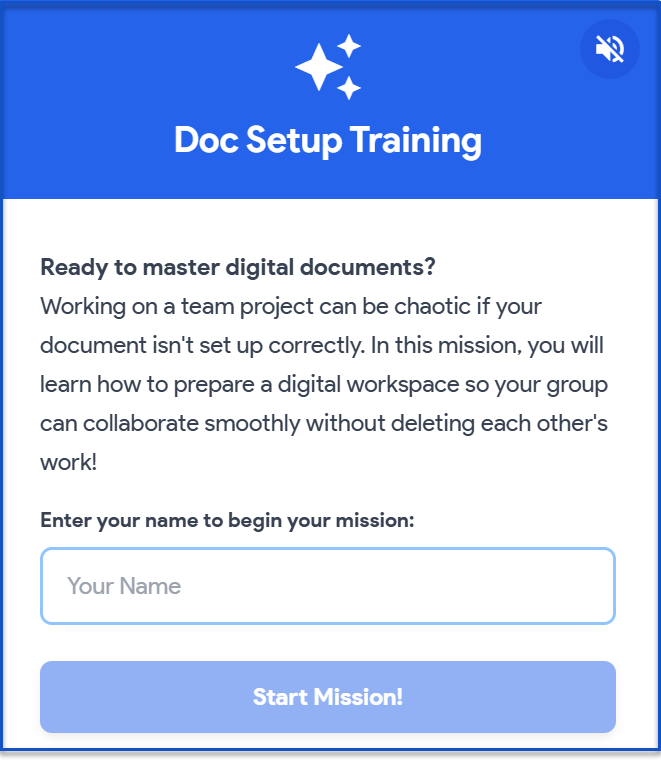 Direct link to Doc Setup Training site.
Step 2. Add your Certificate of Completion to your Thing 4 Quest 2 folder that you created in Quest 1.
- Select the blue Download Image button.
- Make sure the name of the image is correct. If it does not meet your naming style, change it.

Websites & Documents
21T4S Resources
- Doc Setup Training(for both Google & Microsoft)