



QG6 Google Docs: Sweet Tools Emoji Fun
Fun WITH EMOJIS
Emojis are treated as text and can be used free of charge by students (or anyone) of all ages and grade levels.
Step 1. Place your cursor where you want to add an emoji in your Google document.
Step 2. Click the Insert menu.
Step 3. Select an Emoji from the drop-down menu.
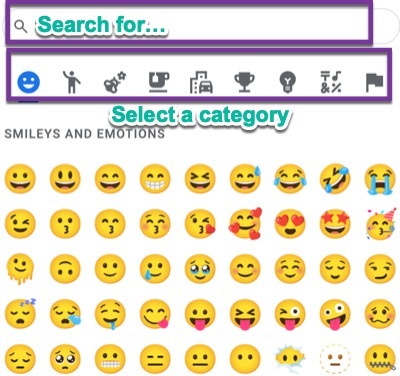
Step 4. When the emoji pop-up window opens, you can type in a search term, browse through the categories, and select one of the images presented..
More Fun with Emojis
Here is another way to locate and select other emojis
Step 1. Place your cursor where you want to add an emoji in your Google document.
Step 2. Select the Insert menu.
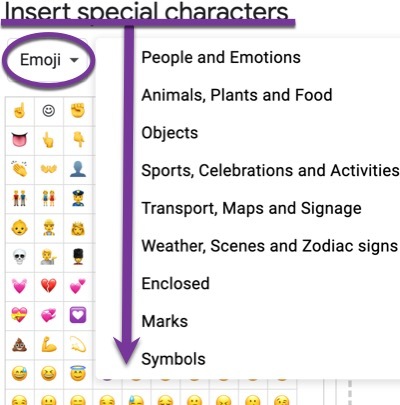
Step 3. Select Special characters, then Symbols menu, and then select Emoji.


Competencies & Standards
MITECS Michigan Integrated Technology Competencies for Students, and
1. Empowered Learner
a. Students connect their learning needs, strengths and interests to their goals and use technology to help achieve them and reflect on their progress.
b.Students build networks and customize their learning environments in ways that support the learning process.
d. Students understand fundamental concepts of how technology works, demonstrate the ability to choose and use current technologies effectively, and are adept at thoughtfully exploring emerging technologies.
Websites and Documents
Websites
- Google Docs Help Center
- Google PlayStore Immersive Reader Extension
- Google Support: Keyboard Shortcuts for Google Docs
- Google Docs Text-to-Speech Accessibility Tools
- Keyboard Shortcut Game
- Translate a Document
Videos from Outside Sources
21t4s Videos
21t4s Documents & Quizzes